

Telegram Setup
Telegram Setup
Telegram is the recommended starting point for MakerClaw. It offers the simplest setup process and works great for personal use and small teams.
Works with both PicoClaw and Moltis.
What You'll Need
- A Telegram account
- ~5 minutes for setup
Step 1: Create Your Bot
Open BotFather
- Open Telegram on your phone or desktop
- Search for @BotFather (the official Telegram bot for creating bots)
- Start a conversation with BotFather
Create New Bot
- Send the command
/newbot
- BotFather will ask for a name for your bot (this is the display name)
- Enter a name like "My Assistant" or "Support Bot"
- BotFather will ask for a username (must end in "bot")
- Enter a unique username like "mycompany_support_bot"
Copy Your Token
BotFather will respond with your bot's token. It looks like this:
123456789:ABCdefGHIjklMNOpqrsTUVwxyzImportant: Keep this token secret! Anyone with this token can control your bot.
Step 2: Get Your User ID (PicoClaw)
To restrict who can talk to your employee on PicoClaw, you need your Telegram user ID.
Using @userinfobot
- Search for @userinfobot in Telegram
- Start a conversation
- The bot will reply with your user ID (a number like
123456789) - Copy this number
Tip: You can add multiple user IDs to allow team members to interact with your employee.
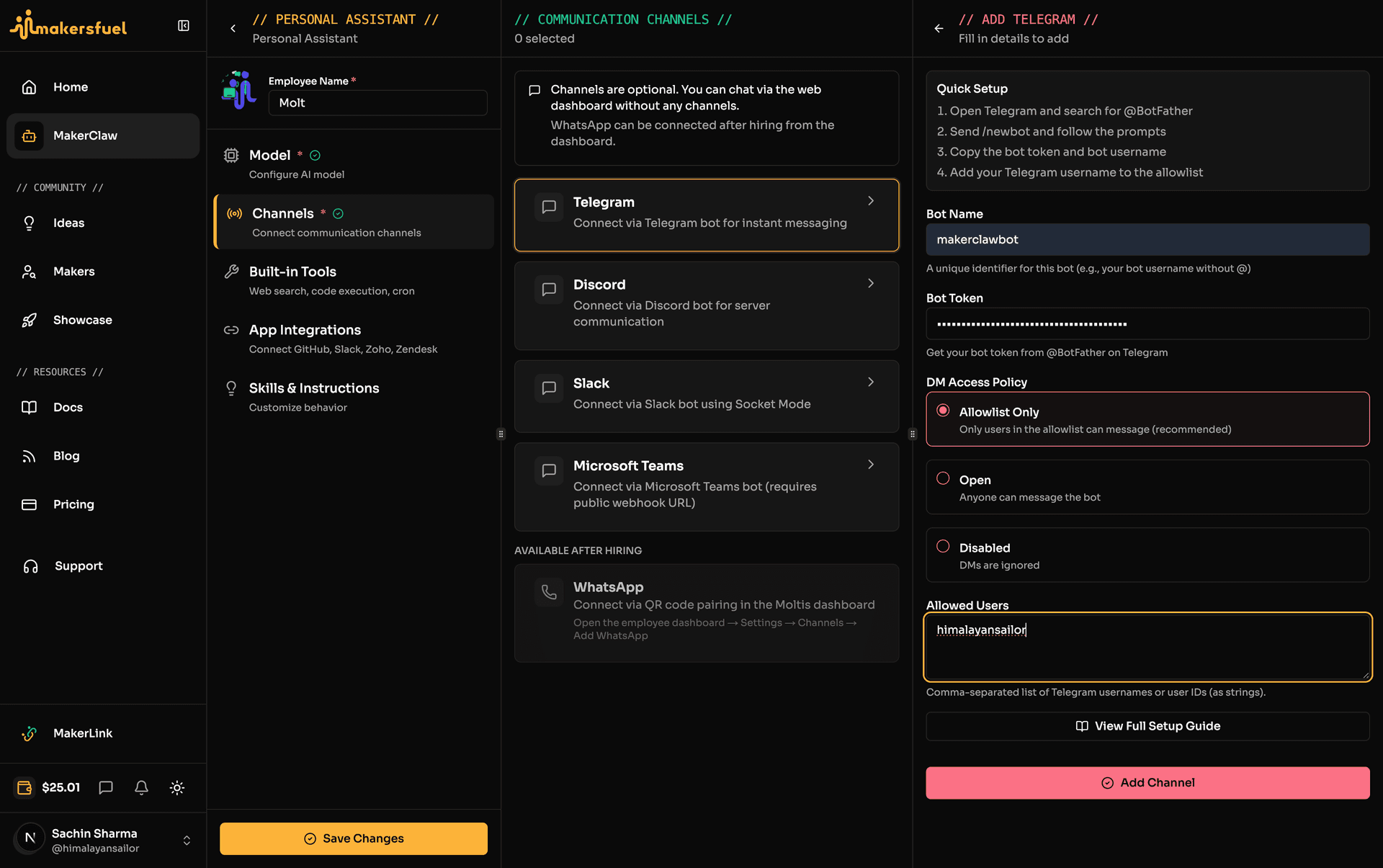
Step 3: Configure in MakersFuel
Configuration fields differ depending on your claw type.
PicoClaw Fields
| Field | Description |
|---|---|
| bot_token | The token from BotFather |
| allow_from | Comma-separated Telegram user IDs (leave empty to allow all) |
| streaming_enabled | Enable streaming responses (optional) |
| use_markdown_v2 | Use Telegram MarkdownV2 formatting (optional) |
Moltis Fields
| Field | Description |
|---|---|
| account_id | Bot Name (display name for the bot) |
| bot_token | The token from BotFather |
| dm_policy | Who can DM the bot: open, allowlist, or disabled |
| allowlist | List of allowed Telegram user IDs (used when dm_policy is allowlist) |
DM Policy (Moltis)
| Policy | Behavior |
|---|---|
| open | Anyone can message the bot |
| allowlist | Only users listed in the allowlist can message the bot |
| disabled | DMs are disabled |
Setup Steps
- Go to your employee's configuration page
- Find the Channels section
- Click Add Channel or enable Telegram
- Fill in the fields for your claw type
- Click Save to apply the configuration
Step 4: Start Chatting
Find Your Bot
- In Telegram, search for your bot's username
- Click on your bot in the search results
- Click Start or send any message
Test It Out
Send a test message to confirm everything is working:
- "Hello, are you there?"
- "What can you help me with?"
- "Tell me about yourself"
Features
Commands
Commands are automatically registered when your employee starts. Users can see available commands by typing / in the chat.
| Feature | Description |
|---|---|
| Auto-registration | Commands sync at startup |
| Command menu | Users see available commands |
| Custom commands | Define in your employee's skills |
Message Types
| Type | Supported |
|---|---|
| Text messages | Yes |
| Images | Yes |
| Documents | Yes |
| Voice messages | Yes |
| Stickers | Limited |
Group Chats
Your bot can work in group chats:
- Add your bot to a group
- Make sure the bot has permission to read messages
- Users can @mention the bot or use commands
Note: In groups, configure whether the bot responds to all messages or only mentions.
Configuration Reference
PicoClaw Access Control
PicoClaw uses the allow_from field:
| Setting | Description |
|---|---|
| Single user | Enter one user ID |
| Multiple users | Comma-separated IDs: 123,456,789 |
| Open access | Leave empty to allow all (not recommended) |
Moltis Access Control
Moltis uses the dm_policy and allowlist fields. Set dm_policy to allowlist and populate the allowlist with Telegram user IDs to restrict access.
Bot Settings in BotFather
You can customize your bot further:
| Command | Purpose |
|---|---|
/setdescription | Bot description shown in profile |
/setabouttext | "About" section text |
/setuserpic | Bot profile picture |
/setcommands | Manual command list (auto-synced by MakerClaw) |
Troubleshooting
"Bot not responding"
- Check token -- Ensure the full token is copied correctly
- Check access control -- Verify you are in
allow_from(PicoClaw) orallowlist(Moltis) - Check employee status -- Must be "Running"
- Restart employee -- Try pausing and resuming
"Invalid token" error
- Make sure you copied the complete token
- Token format:
numbers:letters - Generate a new token via
/tokencommand in BotFather
"User not allowed"
- PicoClaw: verify your user ID is in the
allow_fromfield - Moltis: verify
dm_policyisopenor your user ID is in theallowlist - User IDs are numbers only, no @ symbol
Messages not delivering
- Ensure you clicked "Start" on the bot
- Check if the bot was blocked accidentally
- Verify employee is running
Best Practices
| Practice | Why |
|---|---|
| Use descriptive bot name | Helps users identify the bot |
| Set a profile picture | Makes the bot recognizable |
| Limit allowed users | Security best practice |
| Test before deploying | Catch issues early |
Next Steps
- Employee Channels Overview -- Learn about other channels
- Discord Setup -- Add Discord channel
- Tools & Skills -- Extend capabilities
What did you think of this content?