Configuring Your Employee
Configuring Your Employee
After hiring an AI employee, you can fine-tune their configuration at any time. This guide covers all configuration options and best practices.
Accessing Configuration
- Navigate to MakerClaw in the sidebar
- Click on the employee you want to configure
- Click Edit or Configure button
PicoClaw vs Moltis Configuration Differences
MakerClaw offers two claw types, each with different configuration options:
| Feature | PicoClaw ($20/mo min) | Moltis ($30/mo min) |
|---|---|---|
| Channels | Required | Optional |
| Marketplace Skills | Supported | Not supported (uses OpenClaw Store) |
| Web Search Providers | DuckDuckGo, Brave, Tavily, Perplexity | Brave, Perplexity, DuckDuckGo |
| Web Search Constraint | Multiple providers | One paid provider + DuckDuckGo fallback |
| Built-in Tools | Web Search, Exec, Cron | Web Search, Code Execution, Browser Automation, File Operations, Voice, CalDAV Calendar |
| App Integrations | Via Assistiv OAuth | Via Assistiv OAuth |
Refer to the sections below for details on each difference.
Configuration Sections
1. Basic Information
| Field | Description |
|---|---|
| Name | Display name for your employee |
| Status | Current state (Running, Paused, etc.) |
| Template | Original template used (for reference) |
2. Category
When creating a custom employee (not from a pre-defined template), you can assign a Category to classify your employee's role. Categories help organize your employees and are visible on the employee card.
You can choose from existing categories or create your own custom category.
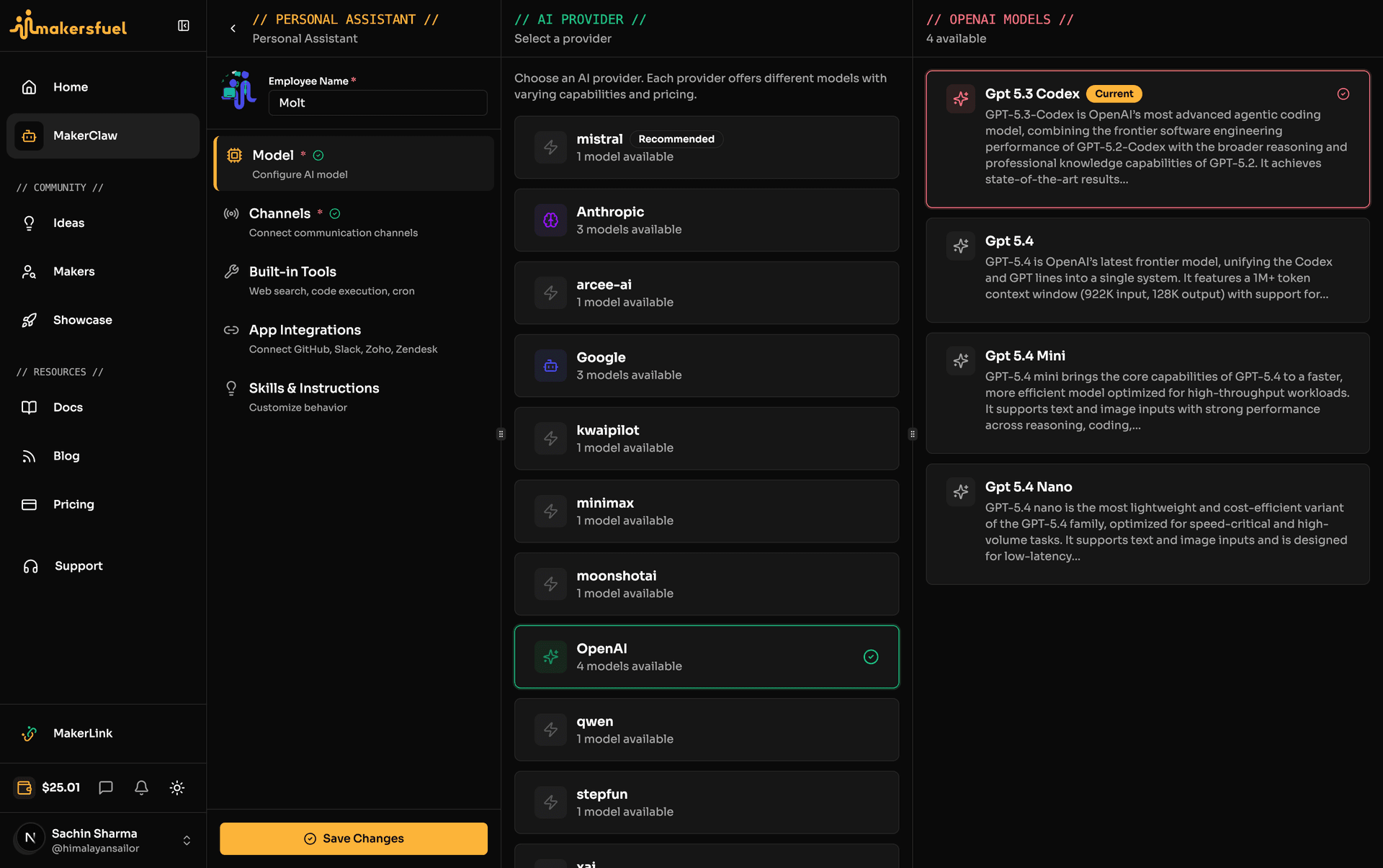
3. Model Configuration
Select which AI model powers your employee.
| Factor | Description |
|---|---|
| Speed | Faster models respond more quickly |
| Capability | More capable models handle complex tasks better |
| Cost | Different models consume tokens at different rates |
Tip: You can change the model anytime. The change takes effect on the next response.
4. Wallet & AI Usage
AI model access is handled automatically through your MakersFuel wallet. No API key management needed. Top up your Assistiv USD wallet via Settings > Wallet (click avatar at bottom of left sidebar, then Settings).
5. Channels Configuration
Configure how users communicate with your employee. See Employee Channels for detailed setup.
PicoClaw: Channels are required. At least one channel must be configured.
Moltis: Channels are optional. Moltis employees can operate without any channels configured (e.g., using the web dashboard only).
Active Channels:
- Toggle channels on/off
- Update credentials anytime
- Test connection before saving
6. Tools Configuration
Enable capabilities for your employee.
Built-in Tools
Web Search
Available providers differ by claw type:
PicoClaw Web Search Providers:
| Provider | Cost | Quality | Setup Required |
|---|---|---|---|
| DuckDuckGo | Free | Good (free fallback) | None |
| Brave Search | Paid | Better | API key |
| Perplexity | Paid | Better | API key |
| Tavily | Paid | Best | API key |
Moltis Web Search Providers:
| Provider | Cost | Quality | Setup Required |
|---|---|---|---|
| DuckDuckGo | Free | Good (free fallback) | None |
| Brave Search | Paid | Better | API key |
| Perplexity | Paid | Better | API key |
Moltis constraint: Moltis supports only one paid web search provider at a time, with DuckDuckGo as a free fallback. You cannot enable both Brave and Perplexity simultaneously.
PicoClaw Execution Tools:
| Tool | Description |
|---|---|
| Exec | Run terminal commands in workspace |
| Cron | Schedule recurring tasks |
Moltis Built-in Tools:
| Tool | Description |
|---|---|
| Code Execution | Run code in isolated environment |
| Browser Automation | Automate web browsing tasks |
| File Operations | Create, read, modify files |
| Voice | 15+ TTS/STT providers for voice interactions |
| CalDAV Calendar | Calendar integration |
MCP Tools (Marketplace & Custom)
Browse and install additional tools that integrate with external services:
- Marketplace Tools — Pre-configured, one-click install
- Custom Tools — Your own MCP server configurations
See Tools, MCP Servers & Skills for complete MCP documentation.
7. App Integrations
App Integrations connect your employee to third-party services via Assistiv OAuth. These are separate from MCP tools and provide native integrations without manual API key management.
Available App Integrations:
- GitHub — Repository access, issues, pull requests
- Slack — Workspace messaging and notifications
- Zoho — CRM and business suite access
- Zendesk — Customer support ticket management
To connect an app integration, go to your employee's configuration and look for the App Integrations section. Each integration uses OAuth so you can authorize access without sharing credentials.
8. Skills Configuration
Skills define your employee's knowledge and behavior through markdown instructions.
Skill Types
PicoClaw:
| Type | Description | Editable |
|---|---|---|
| Custom Skills | Your own instructions | Yes |
| Template Skills | Came with template | Yes |
| Marketplace Skills | From skill marketplace | No (read-only) |
Moltis: Moltis does not support Marketplace Skills. Instead, Moltis uses the OpenClaw Store for extending capabilities.
| Type | Description | Editable |
|---|---|---|
| Custom Skills | Your own instructions | Yes |
| Template Skills | Came with template | Yes |
Writing Effective Skills
# Customer Support Skill

## Your Role
You are a friendly customer support agent for [Company Name].

## Guidelines
- Always greet customers warmly
- Ask clarifying questions before providing solutions
- Escalate billing issues to human support
- Never share internal information

## Common Issues

### Password Reset
1. Verify customer identity
2. Send reset link to registered email
3. Confirm they received it

### Refund Requests
1. Check order status
2. If within 30 days, process refund
3. Otherwise, explain policy politely
Live Config Sync
Configuration changes sync to your running employee container in real-time. When you save changes in the MakersFuel UI, they are pushed to the running container without requiring a restart.
| Change Type | Effect |
|---|---|
| Model changes | Next response uses new model |
| Channel changes | Reconnects to updated channels |
| Tool changes | New tools available immediately |
| Skill changes | Synced to employee workspace |
This means you can iterate on your employee's configuration while it is running. There is no downtime for configuration updates.
Configuration Best Practices
Do's
| Practice | Why |
|---|---|
| Start simple | Add complexity as needed |
| Test regularly | Verify changes work as expected |
| Document skills | Clear instructions = better responses |
| Use specific skills | Focused skills work better than generic ones |
Don'ts
| Avoid | Why |
|---|---|
| Over-configure | Too many tools can confuse the employee |
| Share tokens | Each employee needs unique channel tokens |
| Ignore errors | Fix configuration issues promptly |
Saving and Validation
When you save configuration:
- Validation runs — System checks all required fields
- Token verification — Confirms no duplicate bot tokens
- Connection test — Verifies channel connectivity
- Sync to employee — Updates the running container
Common Validation Errors
| Error | Solution |
|---|---|
| "Bot token already in use" | Each employee needs a unique token |
| "Insufficient wallet balance" | Top up in Settings > Wallet |
| "Missing required field" | Fill in all required channel fields |
| "SMTP connection failed" | Verify email server settings |
| "MCP tool needs configuration" | Configure or disable the tool |
Quick Reference
| Section | What to Configure |
|---|---|
| Basic Info | Name, status, category |
| Wallet | AI usage billed via Assistiv wallet (top up via Settings > Wallet) |
| Channels | Platform connections (required for PicoClaw, optional for Moltis) |
| Tools | Web search, execution tools, MCP servers |
| App Integrations | Assistiv OAuth apps (GitHub, Slack, Zoho, Zendesk) |
| Skills | Behavior instructions in markdown |
Next Steps
- Employee Channels — Detailed channel setup
- Tools, MCP Servers & Skills — Extend capabilities
- Managing Employees — Day-to-day management
What did you think of this content?