Employee Channels
Employee Channels
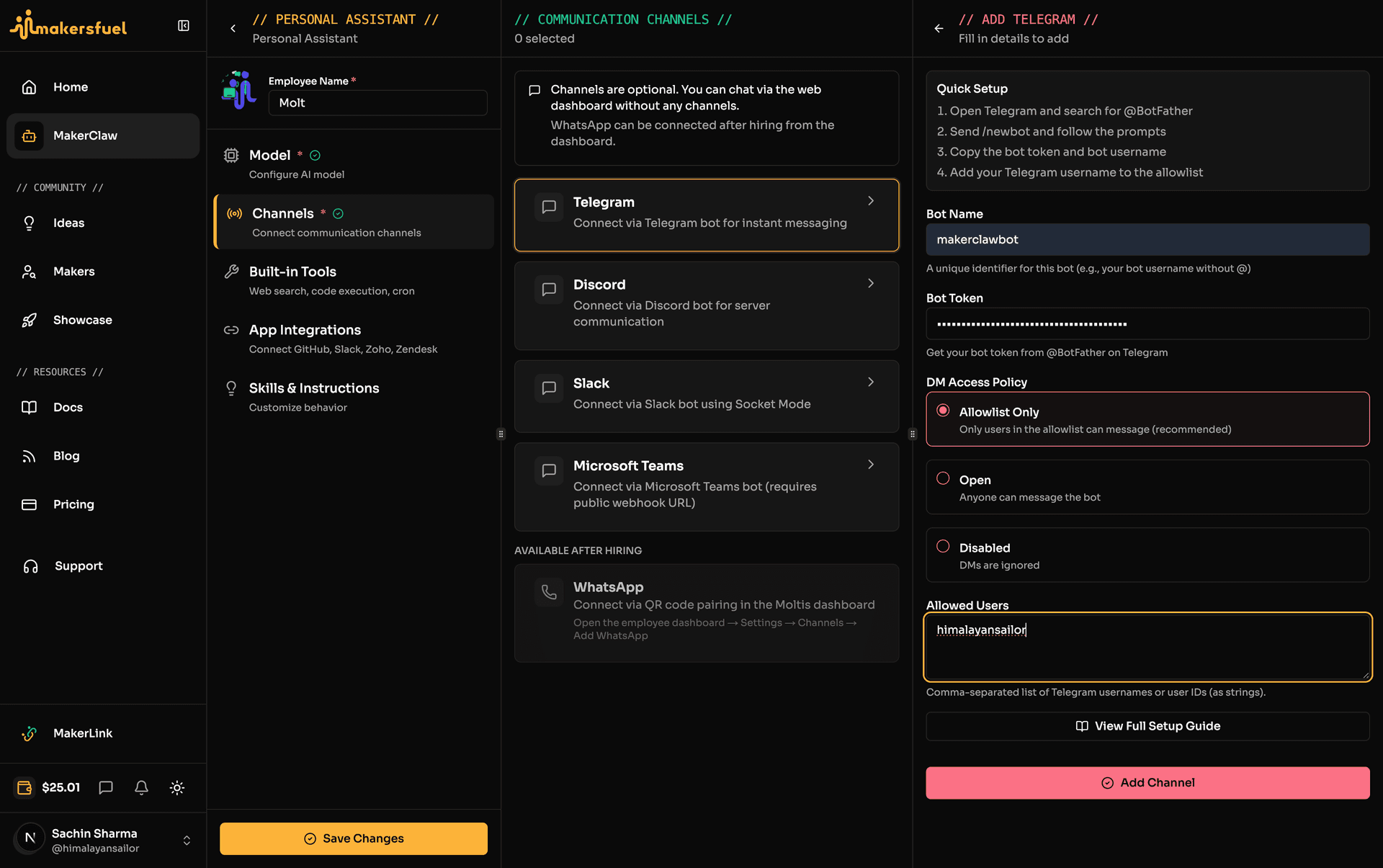
Channels are how your AI employee communicates with users. MakerClaw supports multiple chat platforms, allowing your employee to be available wherever your users are.
How Channels Work
Your employee can connect to multiple platforms simultaneously while maintaining conversation context.
Key Concepts
| Concept | Description |
|---|---|
| Gateway | Unified HTTP server handling all webhook traffic (PicoClaw) |
| Bot Token | Authentication credential for each platform |
| Allow List | Approved user IDs who can interact with your employee |
| Commands | Auto-registered at startup; menus sync automatically |
PicoClaw vs Moltis Channel Requirements
| Claw Type | Channels Required? | Notes |
|---|---|---|
| PicoClaw | Yes | At least one channel must be configured |
| Moltis | No | Channels are optional; can operate via web dashboard only |
Supported Platforms by Claw Type
PicoClaw Channels
PicoClaw supports a wide range of channels through its unified gateway system.
Recommended for Beginners
| Platform | Setup Time | Notes |
|---|---|---|
| Telegram | ~5 min | Easiest setup, recommended starting point |
Standard Platforms
Advanced Platforms
| Platform | Setup Time | Notes |
|---|---|---|
| Matrix | ~20 min | Homeserver details and access token |
| LINE | ~25 min | Webhook URL and token configuration |
| DingTalk | ~20 min | AppID and AppSecret credentials |
| WeCom | ~25 min | Token + AES encryption key |
| Feishu | ~25 min | Standard webhook fields (AppID, AppSecret, token, AES key) |
| ~20 min | AppID and AppSecret |
Hidden/Advanced Channels
PicoClaw also supports these channels for advanced use cases:
- OneBot — Open protocol for QQ and other Chinese platforms
- IRC — Internet Relay Chat
- Web Chat — Embedded web chat widget
PicoClaw DM Policy: allow_from
PicoClaw uses an allow_from field to control which users can message the employee. Add user IDs to the allow list for each channel.
Moltis Channels
Moltis supports a smaller set of channels, and all channels are optional.
| Platform | Setup Time | Notes |
|---|---|---|
| Telegram | ~5 min | Recommended starting point |
| Discord | ~15 min | Requires Message Content Intent |
| Slack | ~15 min | Dual-token setup (bot + app) |
| Microsoft Teams | Pre-hire | Configured during employee creation (Moltis only) |
| Post-hire | QR code pairing via Moltis web dashboard (post-hire only) |
Important: All Moltis channels require an account_id (Bot Name) field to be configured.
WhatsApp on Moltis: WhatsApp can only be configured after the employee is hired and running. Set it up through the Moltis web dashboard using a QR code.
Microsoft Teams: Teams is a Moltis-only channel and must be configured during the initial hiring process, not after.
Moltis DM Policy
Moltis handles direct message permissions differently from PicoClaw. Instead of a simple allow list, Moltis offers three DM policy modes:
| Mode | Description |
|---|---|
| Allowlist | Only users on the allow list can DM the employee |
| Open | Anyone can DM the employee |
| Disabled | DMs are turned off entirely |
Choose the appropriate DM policy based on your use case. For customer-facing employees, "Open" may be appropriate. For internal tools, use "Allowlist".
Quick Start: Telegram
Telegram is the easiest way to get started. Here's the quickest path to a working employee:
- Create a bot — Message @BotFather and send
/newbot - Copy your token — Save the token BotFather gives you
- Get your user ID — Message @userinfobot and copy your ID
- Configure in MakersFuel — Add token and user ID to your employee's Telegram channel
- Start chatting — Find your bot on Telegram and send a message!
For detailed instructions, see Telegram Setup Guide.
Multi-Channel Setup
Your employee can use multiple channels simultaneously.
Benefits
| Benefit | Description |
|---|---|
| Reach | Meet users on their preferred platform |
| Flexibility | Different channels for different use cases |
| Redundancy | Backup if one channel has issues |
Important Notes
- Each channel requires a unique bot token — you cannot share tokens between employees
- Your employee maintains context across all channels
- Skills and tools apply to all connected channels
- Disable unused channels to reduce resource usage
Channel Status
Monitor your channel connections in the employee dashboard.
| Status | Meaning |
|---|---|
| 🟢 Connected | Channel is active and responding |
| 🟡 Connecting | Channel is being set up |
| 🔴 Error | Connection failed — check configuration |
| ⚪ Disabled | Channel is turned off |
Comparison
PicoClaw Channel Comparison
| Feature | Telegram | Discord | Slack | ||
|---|---|---|---|---|---|
| Setup Difficulty | Easy | Medium | Medium | Medium | Medium |
| Real-time | Yes | Yes | Yes | Yes | Periodic |
| File Sharing | Yes | Yes | Yes | Yes | Yes |
| Group Support | Yes | Yes | Yes | Yes | No |
| Commands | Yes | Slash | Slash | No | No |
| Rich Formatting | Markdown | Markdown | Markdown | Limited | HTML |
Moltis Channel Comparison
| Feature | Telegram | Discord | Slack | MS Teams | |
|---|---|---|---|---|---|
| Setup Difficulty | Easy | Medium | Medium | Medium | Medium |
| Real-time | Yes | Yes | Yes | Yes | Yes |
| File Sharing | Yes | Yes | Yes | Yes | Yes |
| Group Support | Yes | Yes | Yes | Yes | Yes |
| When Configured | Anytime | Anytime | Anytime | Post-hire | Pre-hire |
Troubleshooting
Common Issues
| Issue | Solution |
|---|---|
| "Bot token already in use" | Each employee needs unique tokens |
| "Bot not responding" | Verify token, check employee is Running |
| "Connection error" | Check platform-specific requirements |
| "Messages not delivered" | Verify bot permissions and channel access |
Getting Help
- Check the platform-specific setup guide
- Verify all required credentials are correct
- Restart your employee after configuration changes
- Contact support if issues persist
Setup Guides
- Telegram Setup — Recommended starting point
- Discord Setup — For communities and servers
- Slack Setup — For business teams
- WhatsApp Setup — For mobile messaging
- Email Setup — For formal communication (PicoClaw only)
- Other Platforms — Matrix, LINE, DingTalk, WeCom, Feishu, QQ, Microsoft Teams
Next Steps
- Tools, MCP Servers & Skills — Extend your employee's capabilities
- Managing Employees — Day-to-day management
What did you think of this content?